Mirasim Documentation
Attach your own computer
Put your Mac, PC or Linux server on your space list, reach it from your other devices, share it with people you trust, and optionally its desktop.
Three sources to choose from
“Add a space” offers three sources. They differ in where you can reach them from and whether other people can join.
| Source | What it is | Reachable | Members |
|---|---|---|---|
| Team space | A space we host for your team; it runs even when this computer is off (chapter 10) | Any device, any time | Can invite |
| Your own computer | Your Mac, PC or Linux server, on your list so you can reach it from elsewhere | Any device, while the computer is on | Can invite |
| SSH server | A Linux or macOS server you manage yourself (chapter 19) | Only from this computer | Cannot invite |
Attach to cloud
- On the computer you want to reach
Sign in to Mirasim. In a window on this computer, click the space name at the top of the sidebar › Space settings › Remote access, and turn on “Attach to cloud”. “Add a space” › “Your own computer” has the same switch.
- Confirm
While the computer sleeps or Mirasim is closed, it shows as offline.
- Reach it from anywhere
On another computer or the phone, signed in to the same account, it is in the space list as “My computer” and opens in its own window.
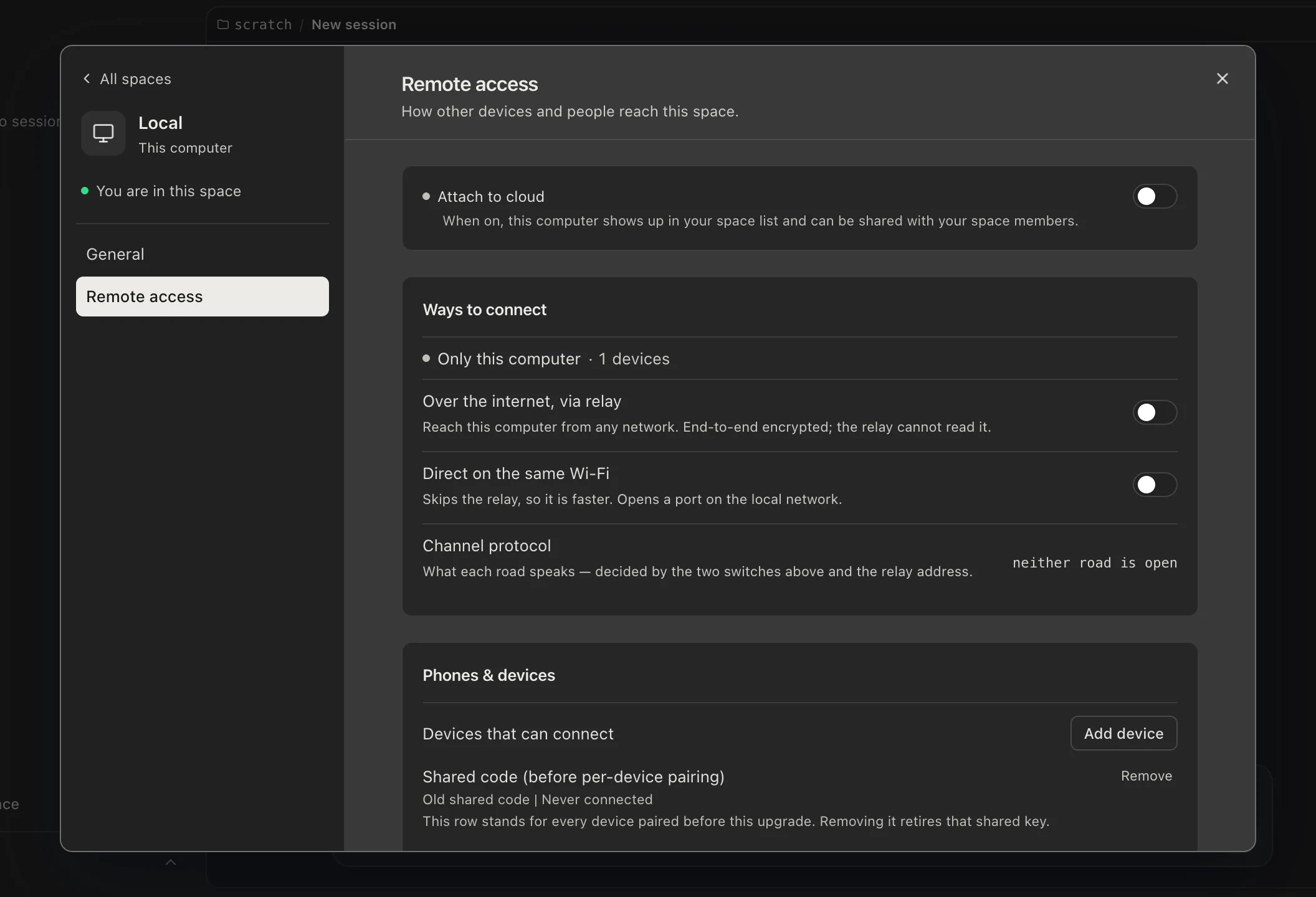
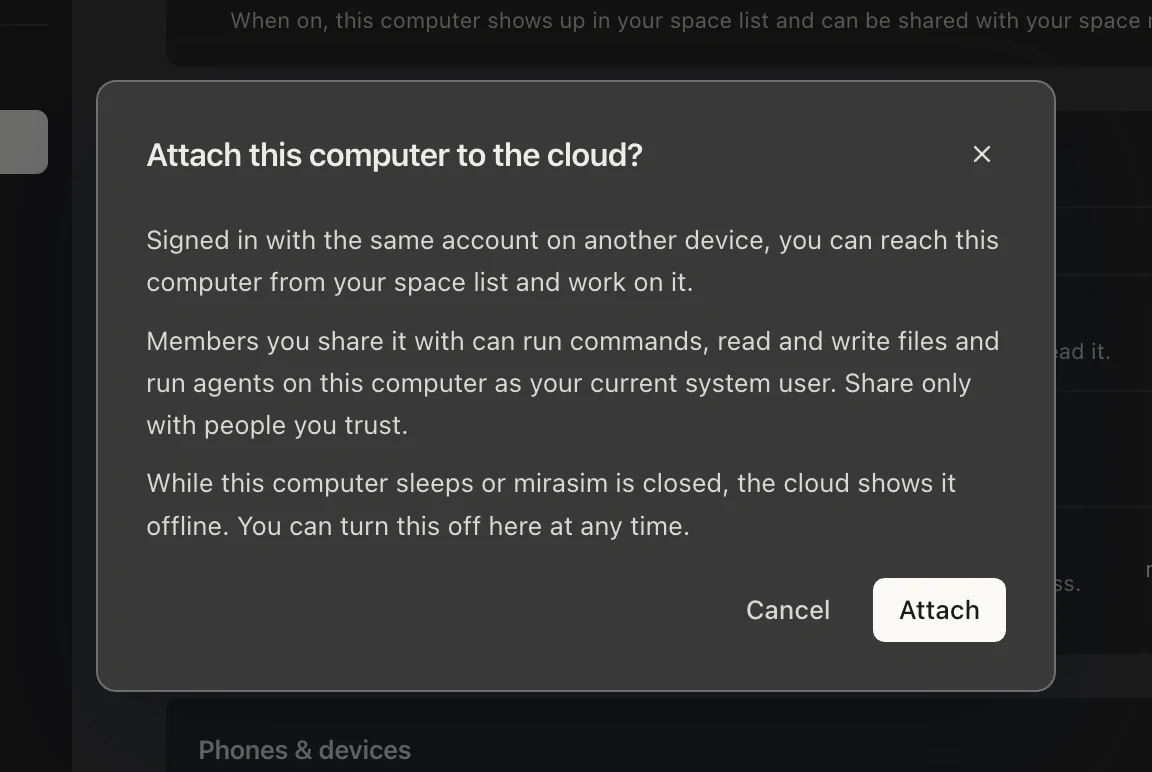
Turn the switch off at any time and the computer shows as offline; its space and members stay, and come back when you turn it on again. On a computer that will not attach, the switch says why: not signed in, the account's limit of attached computers reached, or attaching not enabled for the account.
A Linux server without a desktop
On a server without a desktop, one command installs Mirasim, signs in and attaches it. SSH into the server and run it in the server’s own terminal (not on your laptop or in a team space):
curl -fsSL https://mirasim.ai/install.sh | sh- Install
Installs the stable Mirasim command-line build, adding tar and xz with the system’s package manager if they are missing.
- Sign in
Email and a one-time code, typed at the same terminal. Use the account you sign in with on your other devices.
- Run as a service
With systemd it keeps running after you leave SSH and comes back after a reboot. Without systemd it runs as a background process; after a reboot, run the command again.
- Attach to cloud
Sign in to the same account on your desktop or phone and the server is in the list, ready to share with members like any other computer.
- System
- An x86_64 Linux on glibc, such as Ubuntu, Debian or Fedora. ARM64, and musl systems such as Alpine, are not supported yet.
- Account
- Attaching has to be enabled for the account; to have it enabled, write to support@mirasim.ai. Until then the command says so, and once it is enabled the server attaches by itself within 10 minutes.
- A Linux with a desktop
- You can install the desktop app instead (AppImage or .deb) and turn on “Attach to cloud” there. Use one or the other on the same computer, not both.
# run again: upgrade in place, the sign-in is kept
curl -fsSL https://mirasim.ai/install.sh | sh
# install and sign in, attach later
curl -fsSL https://mirasim.ai/install.sh | sh -s -- --no-attach
# is it attached?
mirasim ui-cli --port 4939 machines attach status
# detach, remove the service and the files (keeps ~/.mirasim)
curl -fsSL https://mirasim.ai/install.sh | sh -s -- --uninstall
Sharing the desktop (macOS)
Under “Attach to cloud” is a second switch, “Share desktop”. With it on, anyone who can reach this computer can see its screen through “Remote desktop” on the tool rail at the right of the window, and control it with their keyboard and mouse.
- Turn on Share desktop and confirm
They see everything on the screen, including your windows, chats and notifications.
- Grant Screen Recording
So they can see the screen.
- Grant Accessibility
So their keyboard and mouse work.
Sharing starts once both permissions are on.
Removing a computer from the list
To remove an offline computer of yours for good: space menu › All spaces › Manage spaces, click its row to open its Space settings, and under General › Danger zone choose “Delete space”. Its members and space balance are erased and cannot be restored. If “Attach to cloud” is still on at that computer, it reappears the next time it comes online, so turn the switch off there first.
Something wrong or missing on this page? Tell us