Mirasim Documentation
Team spaces
A hosted Linux or Mac environment where sessions keep running after you close your laptop and your team works together.
What a team space is
A team space is an environment Mirasim hosts for you. Its workspaces, sessions, terminals and files live there, so sessions keep running when you close your laptop, lose the network or switch devices, and every device sees the same thing.
- Basic
- Linux · 2 cores · 4 GB RAM · 30 GB disk (expandable).
- Lite
- Linux · 4 cores · 8 GB RAM · 50 GB disk (expandable).
- Standard
- Linux · 8 cores · 16 GB RAM · 100 GB disk (expandable).
- Pro
- macOS · Apple silicon · 10 cores · 16 GB RAM — for work that needs macOS or Xcode.
- People
- 5 collaborator seats per space for admins and collaborators (the owner takes none), plus up to 100 observers who take no seat. To add seats, write to support@mirasim.ai. Chapter 11 covers adding people.
- Models
- Platform models run on space credit or personal credit; shared API keys are billed by their provider — see “Models and credits” below.
Getting a team space
Team spaces come with Collaboration: Basic, Lite, Standard and Pro run in our cloud and come with credits, and the plan on your own computer is free (chapter 12 covers attaching it). Prices are on the Pricing page (mirasim.ai/pricing).
Your account has a team space allowance: how many of each spec you can create. Without one, “New collaboration space” under “Add a space” says “Your account has no cloud spaces available”; once all are in use it says “All available cloud spaces are in use”. For more members or more spaces, write to support@mirasim.ai.
Create one
- Open the space menu
Click the space name at the top of the sidebar. “All spaces” in the menu lists this computer, your team spaces, and any space or computer shared with you.
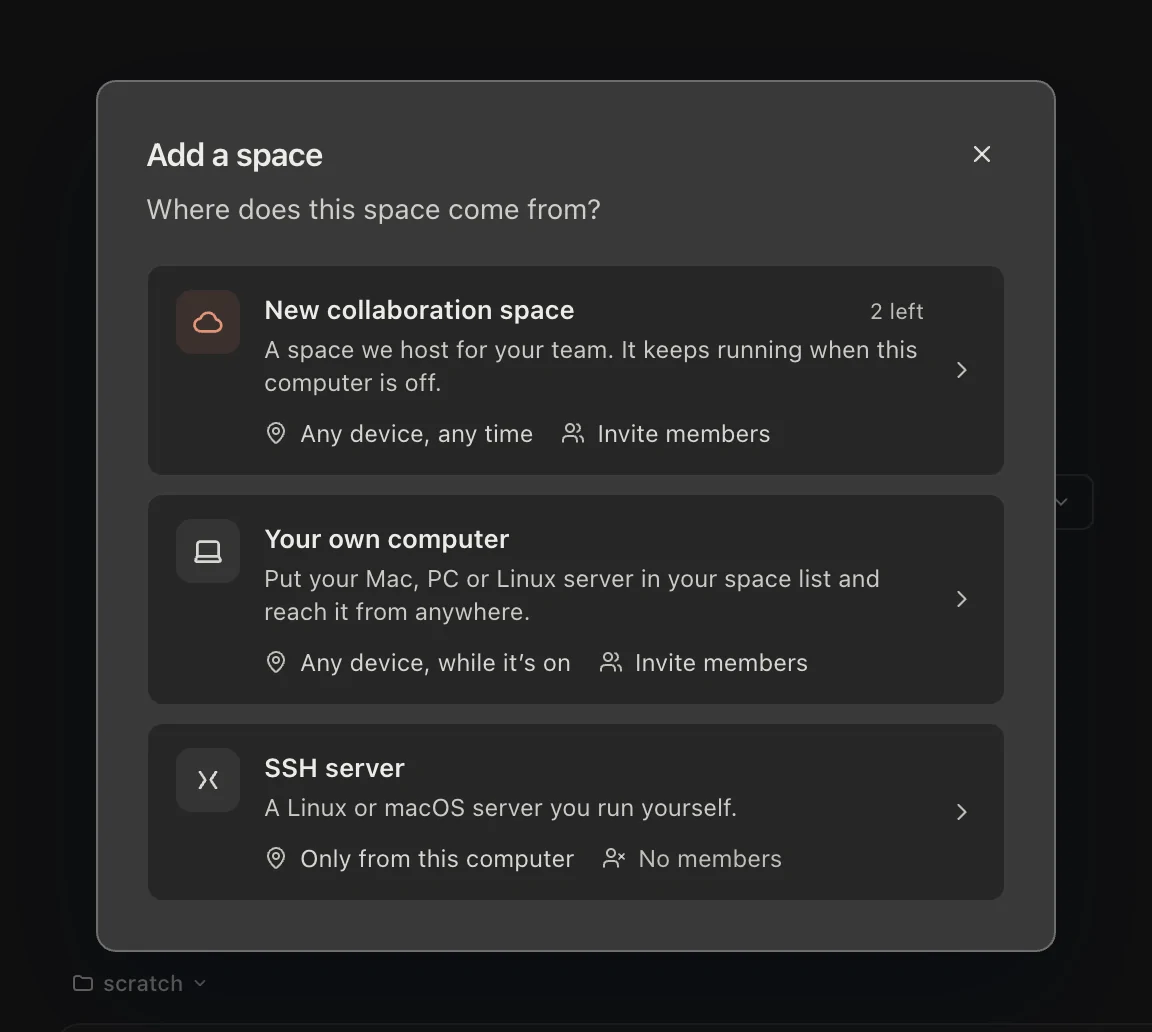
- All spaces › Add a space › New collaboration space
“Add a space” asks where it comes from. “New collaboration space” is the one we host for your team; it shows how many you have left.
- Pick a spec
“Collaboration space” or “Collaboration space · Mac”. A spec your account does not include says “Not enabled”. Once it is assigned, the team space appears in your space list.
- Set up its environment
Once it is ready, this window opens its Space settings › Environment & sync: its spec and runtime components, Agents and sign-ins, and its workspaces. You can come back to it from the space's settings at any time.
Under “Bring over from this computer”, “Sync” copies a local workspace up: its files, its sessions and the agents' memory. It is a one-time copy; the two sides do not sync afterwards, so move code between them with git. Credentials, ~/.ssh and ~/.aws are not copied.
Opening it
Click the space name at the top of the sidebar, then click a team space under “Recent” or on the “All spaces” page. It opens in its own window, or that window comes forward if it is already open. The window you clicked from stays as it was. The top of the sidebar shows which space a window is on.
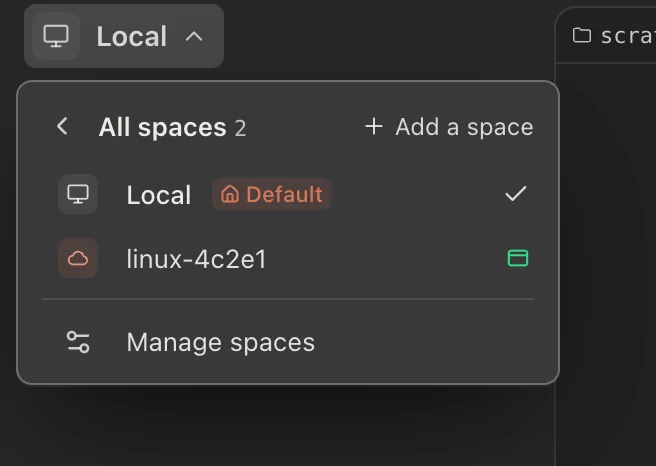
- Opened
- It has a window already; under “Manage spaces” its row also shows who is online and how many sessions are running there.
- Available
- Click to open it in a new window.
- Offline
- The team space cannot be reached right now.
If the connection drops, the window reconnects by itself and the space menu shows when it will retry; “Reconnect now” tries at once. The team space keeps running while you are disconnected.
Working in a team space
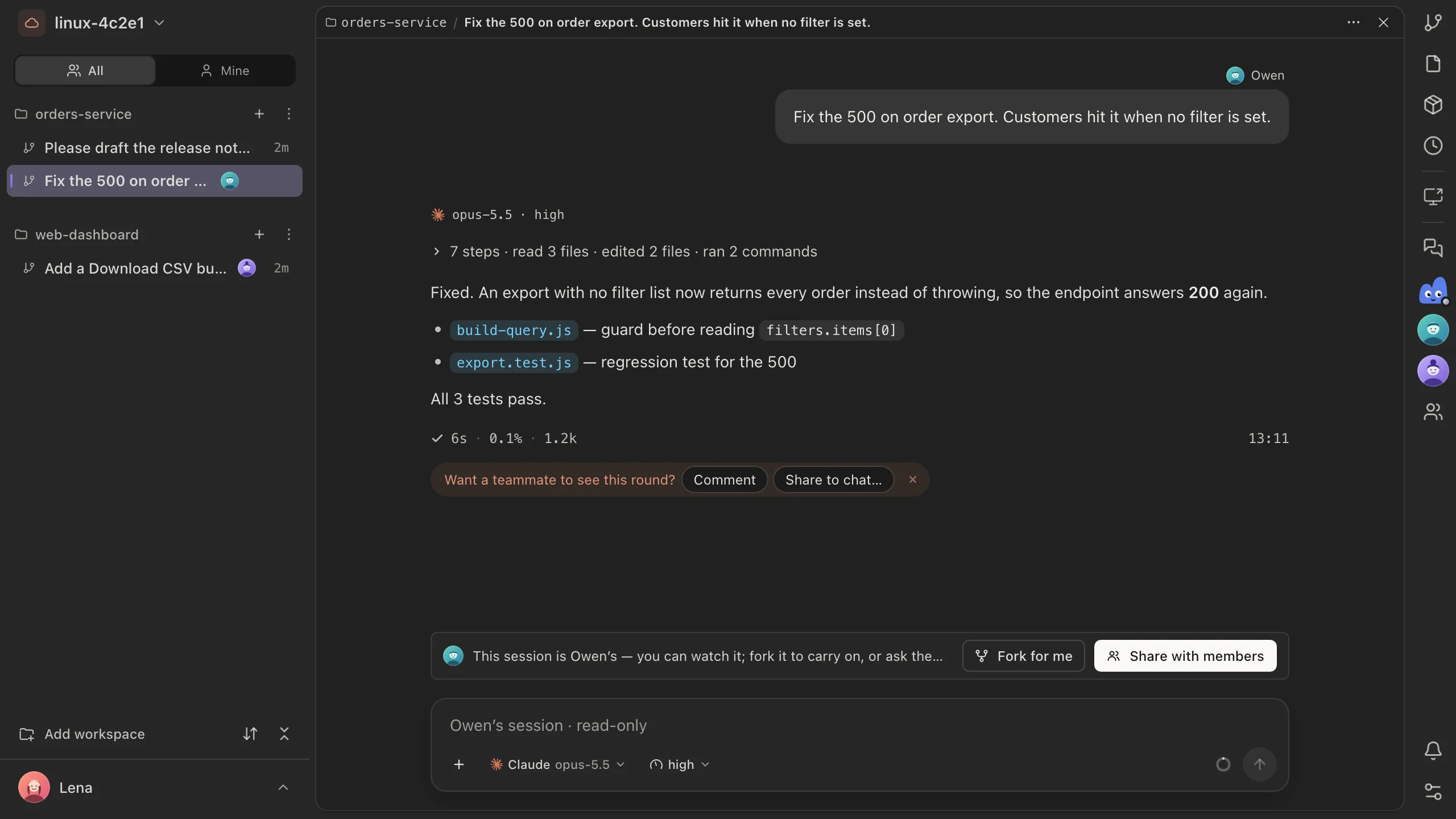
A team space window is the same workbench as on your own computer — sessions, panes, files, Git, terminals — only everything runs in the team space. A few things are specific to it:
- Coding agents such as Claude Code and Codex are already installed. Project toolchains are yours to install, from the team space's terminal.
- Running pages: when an agent or your terminal starts a dev server, its localhost port is listed under “Running pages” on the tool rail at the right of the window — click to open it in the preview. A localhost link in a conversation opens in the preview too.
- Remote desktop: “Remote desktop” on the same tool rail shows the team space's screen, for example for a browser sign-in inside the space.
Pushing code as yourself
Settings › Connections › Code hosting connects GitHub and GitLab. After that, agents and terminals in team spaces clone, pull and push as you. Each person connects their own account, and every git operation runs as whoever started it.
Models and credits
The team can use two kinds of models in the same space:
- Platform models
- Run on Mirasim credits. The credits that come with your plan go straight into the space credit and are shared by the whole team; anyone can add more from their personal credit, with 25% added on the way in.
- Shared API keys
- The owner or an admin connects any provider or relay under Settings › Model config. With “Share with members” ticked, everyone can pick it, billed to that key.
Setting up agents, keys and credits for the team is covered in chapter 11.
Where your data is
- Workspaces, sessions and the team's chat are stored in the team space.
- When a team space is reclaimed, everything in it is erased. Push code you want to keep to a remote repository.
Something wrong or missing on this page? Tell us