Mirasim Documentation
The workbench
What each part of the workbench window does, and which chapter covers it.
Every part of the window
- Left column
- The space you are in, search (⌘K), and your workspaces and sessions (chapter 04).
- Pane area
- Sessions, documents and terminals side by side, grouped into layouts (chapter 08).
- Composer
- Where you send, queue and steer prompts, and pick agent, model and reasoning level (chapters 05 and 13).
- Right toolbar
- Git, files, artifacts and schedules, plus collaboration, members and notifications (chapters 09, 11 and 16).
- Account card
- Bottom left: your account, credits, version and settings.
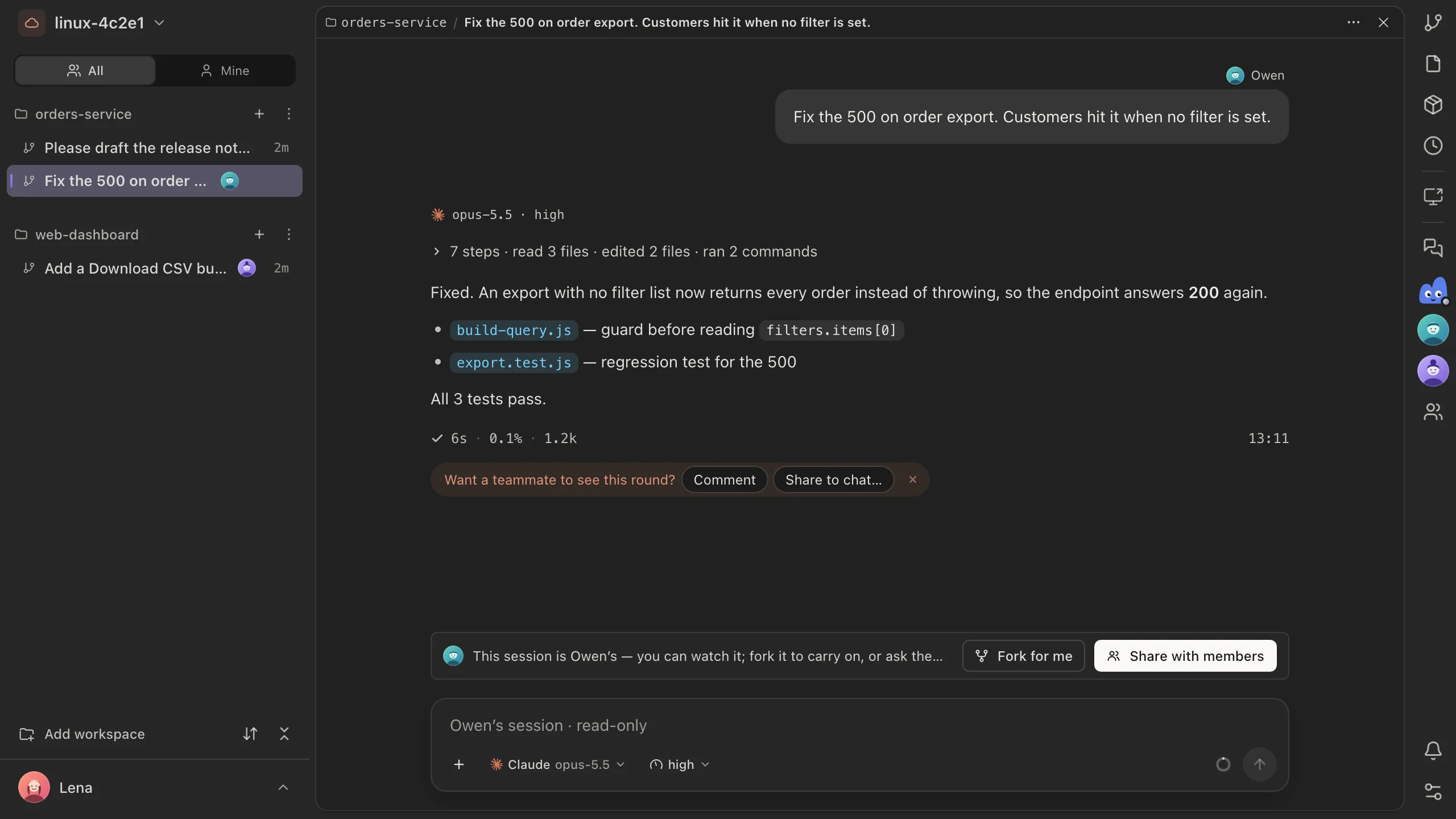
Left column, account card and right toolbar
The main window has no title bar. The space you are in and the window's search sit at the top of the left column; your account is the card at the bottom left; tools, people and notifications are on the toolbar along the right edge, which is always shown.
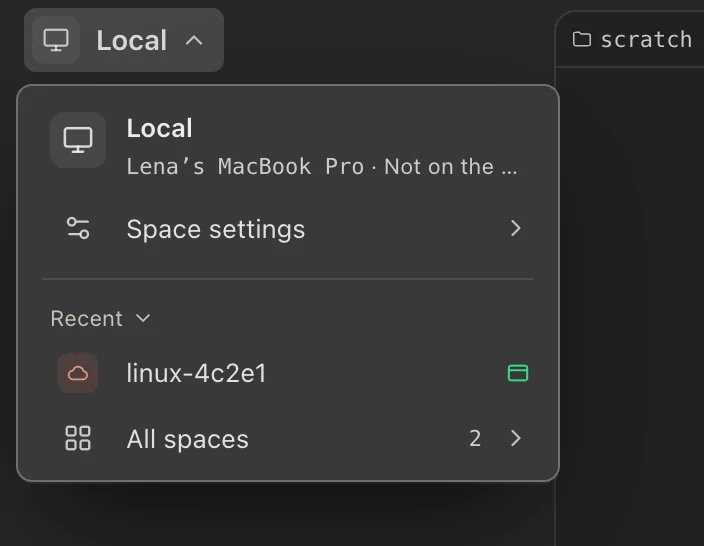
- Space ⌄
- Click the space's name to open the space menu: the current space, Space settings, Space credit, Recent, and All spaces. All spaces lists every space; click one to go there, or use Add a space at the top.
- Search ⌘K
- The command palette: jump to any session, workspace, file or command by name.
- Sidebar ⌘B
- Collapse or bring back the left column.
- Computer Use preview
- Shown next to Search while an agent operates a browser or emulator: a live view of it.
- You
- Your avatar, name and email. Opens Settings › Account.
- Usage
- How much of each agent's subscription and of the platform credit is used. Click a row for its details.
- Version
- The running version, updates, help and feedback.
- Settings
- Agents, models, plugins, network and the rest of the app's settings.
Git, Files, Artifacts and Scheduled tasks open in one panel beside the right toolbar, showing the workspace of the current session. Opening one replaces the one showing; click the same button again to close it.
- Git
- Diffs, staging, commits and branches for this workspace.
- Files ⇧⌘E
- The file tree, with Git status shown on each row.
- Artifacts
- What runs produced: builds, screenshots, logs, exports and evaluation reports.
- Scheduled tasks
- The prompts that run on a clock (chapter 17). Things the team needs to follow up on are items in Collaborate (chapter 11).
- Remote desktop
- See and operate this space's screen. Shown only on spaces that can share their screen.
- Running pages
- The web pages this space is serving, ready to preview. Shown only when there are any, with their count.
- Collaborate ⇧⌘M
- Open or close the space's chat in this window (chapter 11).
- Member avatars
- The others in this space right now. Hover for a person's card; click to open Space settings › Members.
- Member settings
- Opens Space settings › Members. Shown in team spaces and on computers attached to the cloud.
- Notifications
- Things waiting on you: approvals, mentions in other spaces, and being added to a space.
- Appearance
- Theme, language, text size, motion, window mode and density.
Something wrong or missing on this page? Tell us