Mirasim Documentation
Members and collaboration
Add people to a team space or an attached computer, give them agents, models and credits, see who is doing what, and talk next to the sessions.
Who can get in
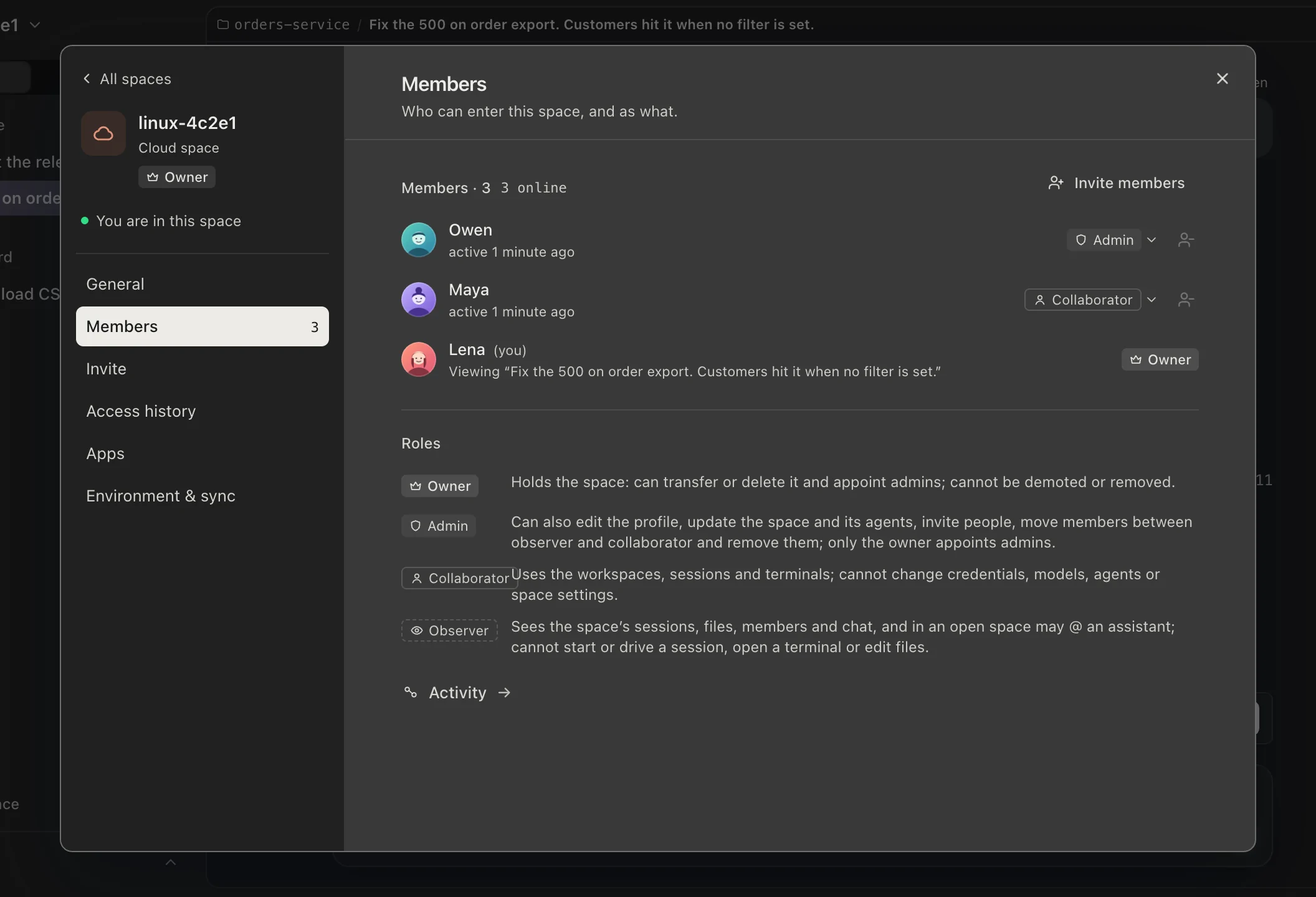
This chapter applies to team spaces and to your own computer attached to the cloud (chapter 12). Each has its own member list, and each member has one of four roles.
| Role | Who | Can |
|---|---|---|
| Owner | Whoever holds it: who created the team space, or whose computer it is | Everything. Only the owner appoints or removes admins. Cannot be demoted or removed, and cannot leave. |
| Admin | Appointed by the owner; takes a collaborator seat | Also updates Mirasim there, installs and updates agents, configures models, adds people, moves them between collaborator and observer, and removes them. |
| Collaborator | Takes a collaborator seat (5 per space; more can be added) | Uses everything there — workspaces, sessions, terminals. Cannot change credentials, models, agents or settings. Can leave. |
| Observer | Up to 100 per space, apart from the seats | Follows sessions, files, members and chat, and can @ the assistant in a group. Cannot start or drive a session. Can leave. |
Adding people
- Open Space settings › Invite
Click the space name at the top of the sidebar › Space settings › Invite. Here you add people by email, share an invite link, and approve requests to join. The member list itself is Space settings › Members, which “Member settings” on the tool rail at the right of the window, or any face there, also opens.
- Enter their email
They do not need a Mirasim account yet. Someone who has one is added straight away; anyone else gets an invitation email and joins automatically the first time they sign in with that address. Only the owner can invite someone as an admin.
- They find it in All spaces
Signed in, they get a notification and the space shows up under “All spaces” in their space menu; it opens in its own window like any other.
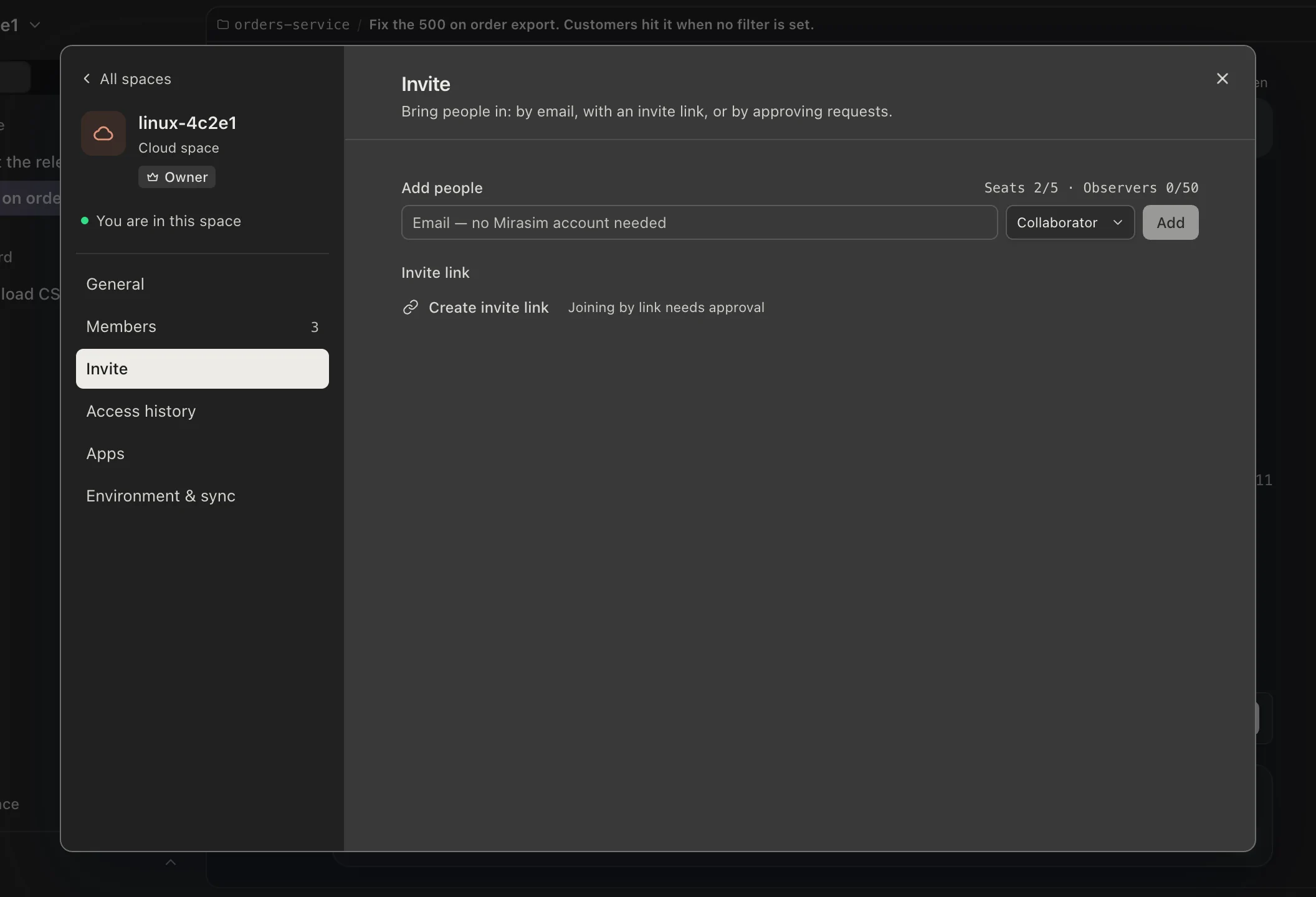
- When the 5 collaborator seats are full, Invite says “New people join as observers”; to add seats, write to support@mirasim.ai. An invitation not yet accepted holds a place in its role's count; pending invitations are listed under “Invited” with their expiry and can be withdrawn.
- To let people join for a price, turn on Paid join under Space settings › Apps (see “Apps” below).
- Changing someone's role reaches their open windows within 15 seconds.
- Removing someone disconnects every window of theirs at once; they cannot come back unless added again. A member can also leave on their own: Space settings › General › Danger zone › “Leave space”.
- The owner hands the space over from a member's role menu in Members, with “Transfer ownership”; it takes effect when they accept.
- Space settings › Access history records who added, promoted, demoted or removed whom — from the moment the current owner got it.
Agents for the team
Agents such as Claude Code and Codex do the work. In the space's window, Settings › Agent config is where the owner and admins install and update them and set the “Default agent”, its model and “Reasoning level”; new sessions start from there. Collaborators can switch agent and model in the sessions they start; observers only watch.
Sharing an API key
- Open Settings › Model config
In the space's window. The owner and admins can change this page.
- Connect a provider
Any provider or relay: enter its API address and key, then import the models you want.
- Tick “Share with members”
New entries start ticked. For a key added earlier or imported, edit it, tick the box and save.
- Members pick it
It appears in the model picker of every member's sessions. They use it without seeing its key or endpoint.
- Turns on a shared key are billed by its provider and spend no Mirasim credits. Set spending limits in the provider's console.
- In a team space, Member usage on the same page shows who used how much: admins see everyone, members see themselves.
- A key is managed by whoever added it; everyone else can pick it but not change it.
Space credit and personal credit
Platform models run on Mirasim credits; 1 credit is $1 at API list prices. Credits come in two kinds:
| Credit | Where it comes from | Who uses it |
|---|---|---|
| Personal credit | Credits that come with a plan, and token packs | You |
| Space credit | Credits that come with a space, and what members move in from their personal credit (25% added); never expires | Everyone in the space |
Giving the team space credit
- Add credit
Space settings › Space credit › Add credit. Any member can add from their personal credit, 10 credits or more: add 100 and the space gets 125. It then belongs to the space — it can't be moved back, and stays when a member leaves.
- Space credit is on by default
Every space starts with space credit on. Only the owner can turn it off with “Turn on space credit”; the balance stays.
- Decide how it is shared
The owner and admins set how much each member can use — see below.
While it is on, each person picks Space or Personal under “Paying with”; Space is the default. Their turns draw on space credit first, and when their share is used up or the space runs low, a turn falls back to their own personal credit. While the space can pay, members need no credit of their own.
Sharing and member caps
| Sharing | What it does |
|---|---|
| No caps | Everyone shares the balance until it runs out. |
| Fixed split | Splits today's balance evenly among today's members. For people who join later, or credit added later, use “Split again”. |
| Periodic split | Hourly or daily, splits the balance at that moment evenly among all members. |
You can also give one person a “Custom” cap. Caps count total use: someone who has used 30 and should get 20 more needs a cap of 50.
Calling models from programs in the space
Programs in the space can call models on space credit: your own code, and apps such as Dify, LobeChat, n8n or Open WebUI. Each key is counted and capped on its own. Claude models aren’t available yet.
- Create a key and make it the default
Space settings › Space credit › API keys › “New key”: give it a name, a cap and an expiry. If the space has no default key yet, “Make default” is already ticked. The owner and admins do this, on a computer.
- Read two variables in your code
Terminals, agents and scheduled tasks in the space already have
MIRASIM_API_BASEandMIRASIM_API_KEYset. Nothing needs copying into the code.
import os
from openai import OpenAI

client = OpenAI(
    base_url=os.environ["MIRASIM_API_BASE"],
    api_key=os.environ["MIRASIM_API_KEY"],
)
r = client.chat.completions.create(
    model="deepseek-flash",
    messages=[{"role": "user", "content": "hi"}],
)
print(r.choices[0].message.content)
A new key is never shown itself; the page shows its name and ID. MIRASIM_API_KEY only works inside this space and isn’t a model key. You can also ask an agent in a session to set this up.
Filling in an app
| Field | What to enter |
|---|---|
| Base URL / API address | http://127.0.0.1:4963/v1 |
| API Key | The value of MIRASIM_API_KEY (starts with msl_) |
| Model | The app fetches the list itself; you can also type a name |
- Both values have copy buttons under “How to use it in this space” on the API keys page; or run
echo $MIRASIM_API_BASE $MIRASIM_API_KEYin a terminal in the space. - GPT models also work on the chat completions endpoint most apps use.
- A web page can’t call it straight from the browser; go through your own server.
- In Docker, use host networking (
--network host): inside a container 127.0.0.1 is the container itself.
Long-running services
A service not started from a terminal in the space reads both values from ~/.mirasim/run/space-api.env:
| Started with | How |
|---|---|
| pm2 | Restart from a terminal in the space: pm2 restart <app> --update-env |
| systemd | In the service’s [Service] section: EnvironmentFile=%h/.mirasim/run/space-api.env |
| Docker | docker run --env-file ~/.mirasim/run/space-api.env --network host … |
Using a particular key
Calls that don’t name a key use the default one. To count or cap a program on its own, create a key for it and put its ID in the address, http://127.0.0.1:4963/k/<key-id>/v1, or send the header X-Mirasim-Key: <key-id>.
Who can do what
| Role | What they can do |
|---|---|
| Owner, admins | Create, edit, make default, turn off and delete keys; “Reset pass” |
| Collaborators | See the keys (name, ID, default, usage) and how to use them, and use them in programs |
| Observers | Can’t use them |
“Reset pass” stops the current API key at once. Programs that read the environment pick up the new value when restarted; apps you pasted it into need the new one.
Keys made earlier, and programs outside the space
- Keys made before keys became space-only are marked “Legacy”. They keep working anywhere, outside the space too, until they expire or are deleted. No new ones can be made.
- A program deployed outside the space, such as on your own server, can only use a legacy key. Otherwise keep it in the space and publish it from there (see “Apps” below).
When a call fails
| The error says | What to do |
|---|---|
The pass is wrong (bad_pass) | It was reset. Restart the program or open a new terminal; enter the new value in apps. |
No default key (no_default_key) | Ask the owner or an admin to make a key the default, or name a key in the call. |
The key can’t be used (key_unavailable) | The ID is wrong, or the key is off or expired. Use another, or ask the owner or an admin. |
| Credit used up | Space credit or this key’s cap is used up. Add credit, or ask an admin to raise the cap. |
| The network is unstable | Try again shortly. |
Who is here, and what they are doing
- On the tool rail at the right of the window, under Collaborate, are the faces of the other people here right now, up to five; the rest fold into +N. A small dot means they have a turn running; a dimmed face means they stepped away.
- Point at a face for their card: role, device, last activity, the sessions they are running. Click it to open Space settings › Members with that person selected.
- “Activity” in Space settings › Members opens “Who is doing what”, which draws who is running or viewing which session right now.
Sharing sessions
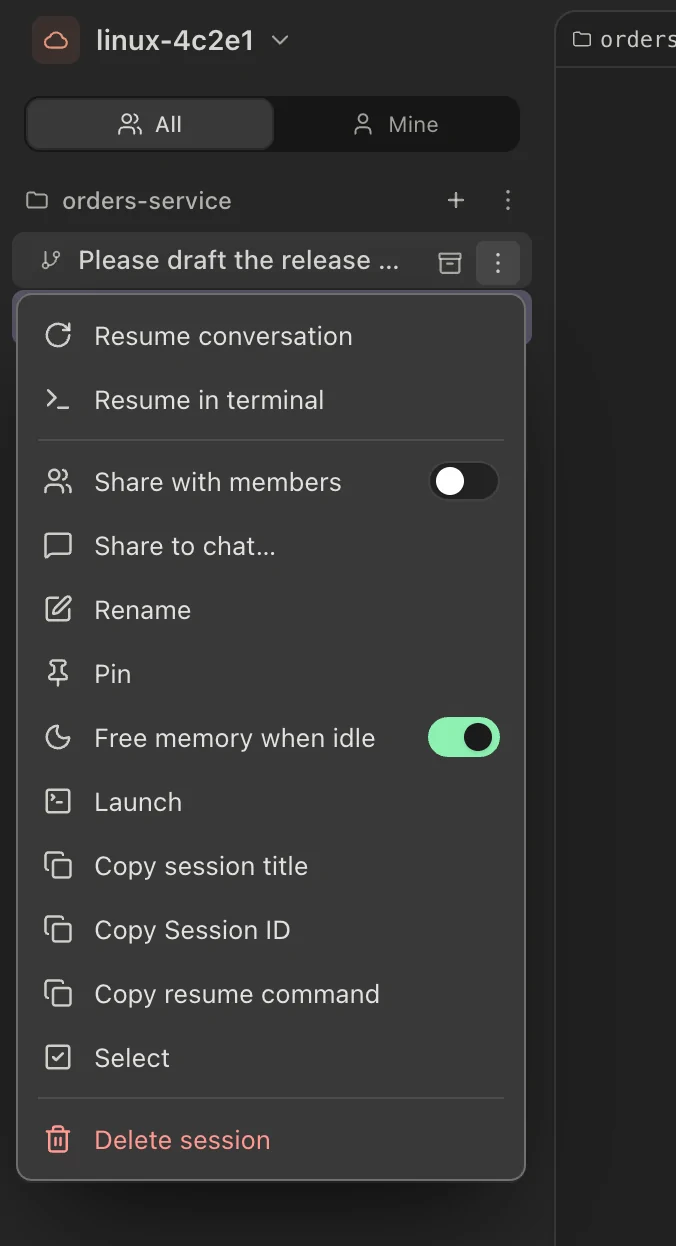
Every prompt a person sends is signed. In a session several people have written in, each of their messages carries the sender's name and avatar, and the session's row in the sidebar shows the faces of whoever asked in it.
- Private by default
- You can read anyone's session, but only its creator can send in it. To carry on yourself, use “Fork for me”; or ask the creator to turn on “Share with members” in the session's ⋯ menu, after which everyone can send there.
- One turn at a time
- While someone's turn is running, others can watch and send once it ends. The owner can stop another person's turn, after confirming.
- All / Mine
- A switch at the top of the session list. “Mine” keeps the sessions you created or have written in.
- Notifications
- On the phone, notifications that a session finished or is waiting for an answer are only for turns you sent.
Collaborate: channels, DMs and threads
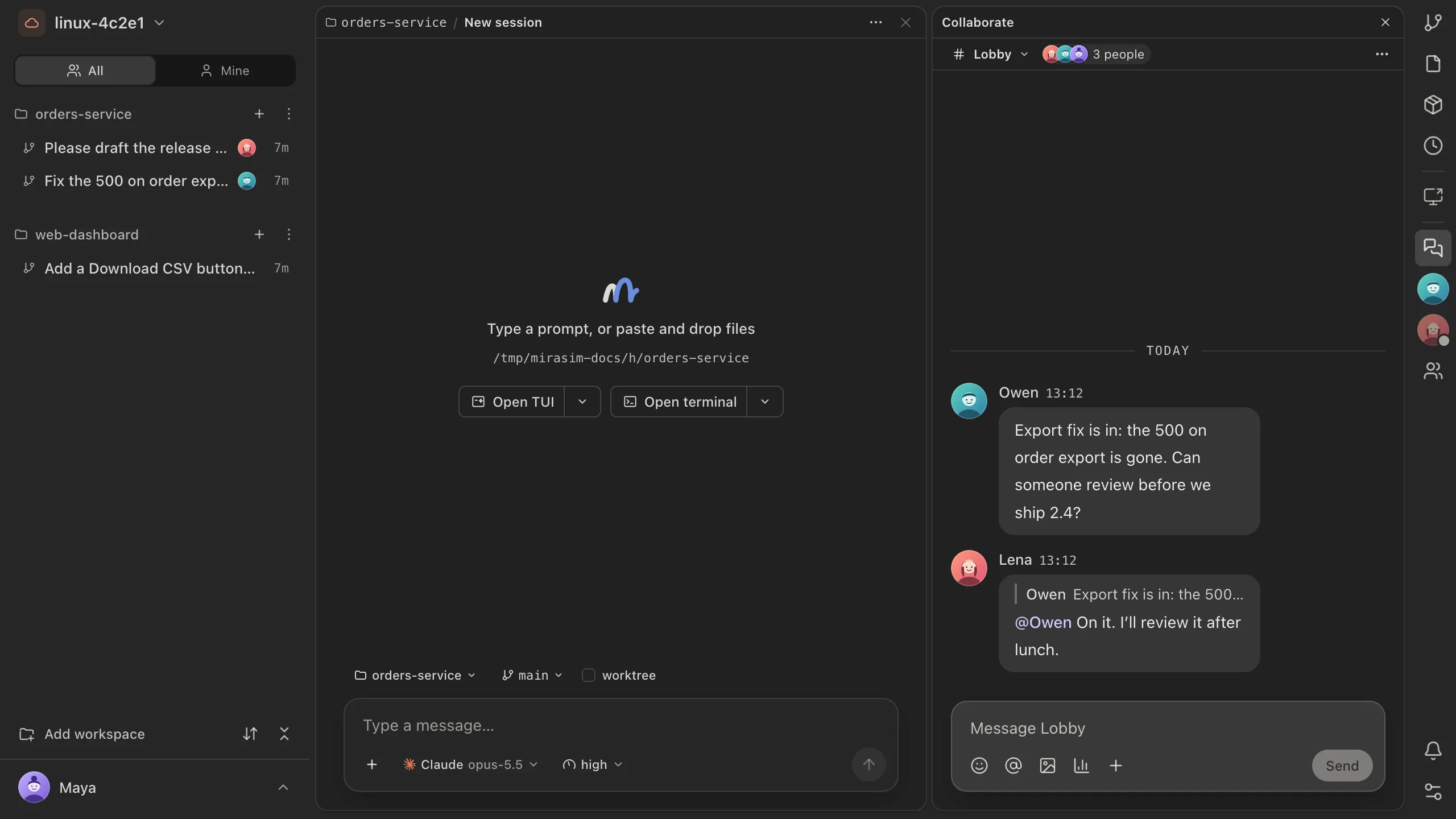
Every team space and every shared computer has its own team chat, opened with “Collaborate” on the tool rail at the right of the window (⇧⌘M). It docks on the right of the window, or opens in a window of its own with “Open in window”. The messages are stored in the space or on the computer, so its agents can read them; while it is offline, its chat is unavailable.
- Channels
- Every team space and shared computer starts with the Lobby. Only the owner and admins create channels and change their members.
- Direct messages
- One to one.
- Session comments
- One room per session, holding the comments on its turns — see the next section.
- Threads
- “Reply in thread” keeps a side discussion off the main flow. Follow a thread and its new replies land in For you; when it is done, right-click it (long-press on the phone) and “Wrap up thread” — it stays readable and can still be replied to.
- For you
- @-mentions of you, replies to you, followed threads and keyword hits. @everyone and @here reach the whole room or whoever is online.
- Your own settings
- Per-room notifications (all messages, only @ and replies, or muted), Do not disturb with a daily schedule, keyword alerts, and exporting the chat history.
Assistants
@-mention an assistant in a chat and it starts a session in that team space (or on that computer) to do the work; the result comes back into the thread. An assistant is an agent with a name, a model, a default workspace and a chosen set of skills and MCP servers — the owner and admins create them under Manage assistants. When an assistant needs an answer, only the person who called it can give one.
Between the chat and the sessions
- Comment on a turn: hover a turn in a session and choose Comment; @ someone to pull them in. “Hand to agent” sends the comment into the session as a turn from you; “Resolve” closes it.
- Share to chat…: post a session, or one of its turns, into a room as a card others can open.
- Send to session…: from a message's ⋯ menu, hand the message to a session as its next turn.
- Add as items…: from a turn's ⋯ in a session, pick the things to do out of that answer; from a message's ⋯, keep the message as an item — next section.
Items: what the team has to do
Items are the team's list of things to do, under the Items tab in Collaborate, on a team space or an attached computer. Each gets a number (T-1, T-2…). Write one in the line at the top of the list. In a session, a turn's ⋯ › “Add as items…” picks several out of that answer; a message in Collaborate can be kept as an item from its ⋯ too. Click an item to open its page: its fields, its sessions, its sub-items, its history, and a discussion you start only when you need one. An item stays in the list until you also post it to the room.
- Owner
- One owner, or none — then it waits to be claimed and anyone in the room can Claim it. Assign hands it over with an optional handoff note.
- Collaborators
- People doing it with the owner. They follow its thread and get the same status changes and questions.
- Status
- To do, In progress, In review, Done or Canceled — click the status icon at the front of the row to change it. Until someone sets one, an item a session has picked up reads In progress.
- Sub-items
- Two levels. Add them one by one, split them out of the description's list, or attach items that already exist; the parent shows how many are done.
- Sessions
- New session on the item's page starts one for it — yourself, or delegated to an assistant — with what it is for (Work, Research, Review, Compare or Split) and a first message already filled in from the item; the assistant's answer comes back into the item. Link a session attaches one that is already running. Each session shows its live state beside it, and an item added from a session turn keeps that session as its Origin. In the session, a line above the composer names the item it belongs to.
- Due date and milestone
- A due date turns yellow on the day and red once it has passed. A milestone groups items under its own due date and progress.
Views across the top — All, Mine, Collaborating, Sent and Done, plus Milestones — cut the list by who it belongs to; Filter narrows it further and Views saves a filter you use often. Expand spreads the items across the window; switch from List to Board and To do, In progress, In review and Done become columns, so dragging a card to another column changes its status. On the phone you get the same list, status icons, sub-items and sessions, without the board.
Apps: what the space offers outside
Space settings › Apps lists everything this space offers to people and systems outside it, who need not join: the space page, its agents (reached over ACP from editors such as Zed or JetBrains), the pages and services you published, and API apps. Published pages, services and agents go through review before they are public; API apps take effect as soon as they are saved. Everything lives in the workspace's .mirasim/publish.json — edit it yourself, or ask an agent in a session: the built-in mirasim-publish skill writes it, previews it on this computer and shows you the result before anything is submitted.
An API app lets an outside system — an alert, a webhook, a feedback form on your page, another tool keeping items in sync — send events into the space. This computer handles each event by rules, by an agent, or by your own service, and acts in the space only with the permissions you grant: create items, post to a room, notify a member, run an agent, take in a file, run a schedule.
- Access
- Token: an outside system calls it with an access token. Public: visitors to this space's live pages call it, no sign-in, a daily limit per visitor.
- Handling
- Direct (the caller uses the actions itself), Rules (a few fixed steps), Agent (a turn in a folder you choose, its instructions in AGENTS.md), or your own service on a local port.
- Permissions
- Nothing is allowed until you tick it. Messages can only go to the people and rooms the app names.
- Billing
- Only agent turns cost anything. Space credit with an optional daily limit (a public app spends the public wallet), or your own account.
- Event delivery
- When its items change or a task finishes, the space posts a signed event to the URL you give; Deliveries shows each attempt and can resend it.
- Access token, Call log, Test
- The token is shown once when you generate it — hand it to the other system yourself. The call log keeps 30 days. Test runs the app once on this computer, for real.
Paid join, also under Apps, sells a place in the space itself. Set a price, or just tell the agent in the space “charge 1 credit to join”, and you get a link. Visitors open it, sign in and confirm in Mirasim's payment sheet; the credits come from their own account. On a cloud space whoever pays joins at once, as a collaborator or an observer as you chose, and the credits go into the space credit. Nobody is charged while seats are full, and anyone who can't be added gets the credits straight back. On a connected computer a paid request still waits for your approval, and is refunded if you decline it, it is withdrawn, or 14 days pass.
On the phone
Sign in to the phone app with the same account and your team spaces are listed under Cloud. Connected to one, the phone has the same chat and the same members sheet, where admins can also promote, demote and remove people.
Something wrong or missing on this page? Tell us